
Passman – your team’s passwords in one place, on your server
A password manager for companies that want to keep access credentials on their own premises, not in someone else’s cloud. Everyone sees only what has been shared with them, and the audit log shows who used that access and when. With SecureSend you can also give access to someone outside the company – without creating an account for them.
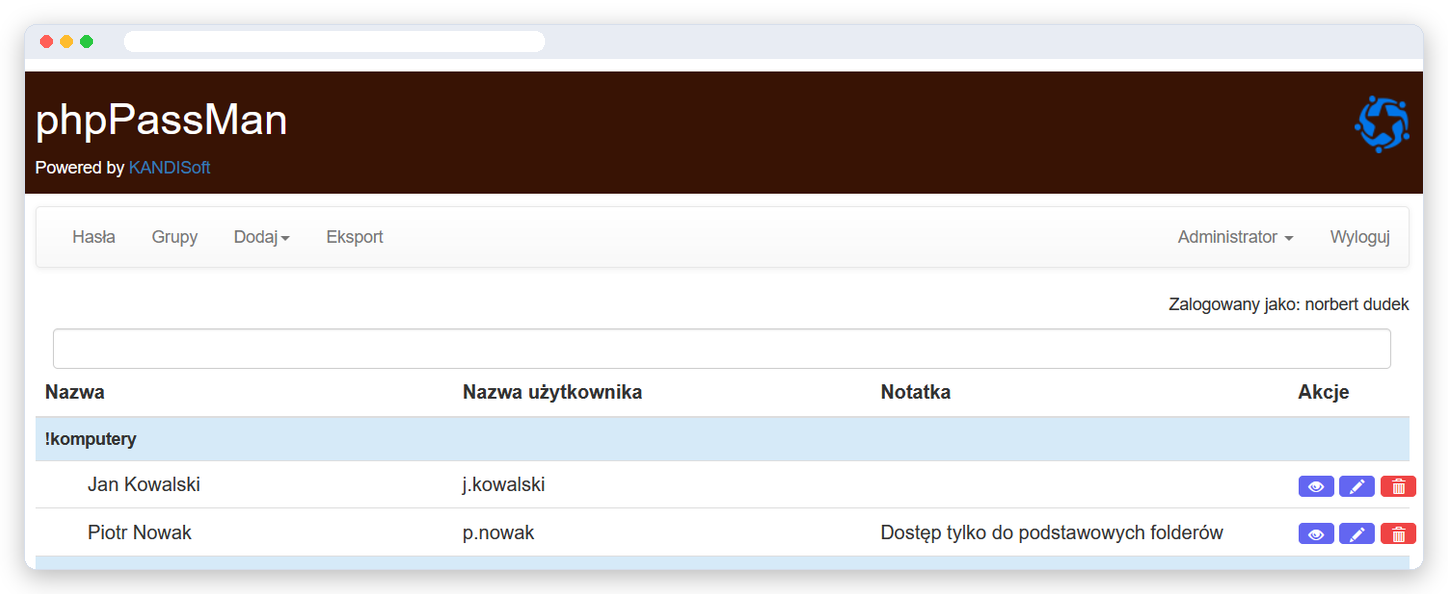
Company passwords usually end up where they shouldn’t
The router password sits in an Excel sheet, access to the hosting panel arrived by email two years ago, and the login to the online shop is known only to one person, who is just on holiday.
A password spreadsheet is just another file
It gets copied to USB sticks, sent by email and saved in several versions. After six months nobody knows which one is current or who has a copy.
A password sent by email stays forever
It stays in the sender’s and recipient’s mailboxes and in mail server backups, long after it stopped being needed.
The cloud means data on someone else’s server
For many companies that’s a problem: because of terms of service, GDPR or simple caution.
Who Passman is for
One application, three different needs. A small company finally wants to get rid of its password spreadsheet, an IT service company wants to keep its clients’ access under control, and someone who cares about their data wants to keep it on their own server. Find the description that fits you.
Companies and offices
No more passwords in Excel and emails.
Access to email, accounting, the online shop or hosting is in one place, and each employee sees only what they need. When someone leaves, you revoke their access with one click – without hunting for where they saved passwords.
- Groups and folders instead of a shared spreadsheet
- Sharing with individuals and entire departments
- Audit log: who, what and when
- Forced password change for new employees
- Fully Polish interface
IT service providers and companies serving clients
Client access under control.
Routers, servers, panels and licences of dozens of clients – each device with its own fields and attachments. A field technician finds the data in seconds, and a subcontractor gets only the one password they need, and only for the duration of the job.
- Custom fields: IP address, serial number, PIN
- Attachments: certificates, configurations, licences
- SecureSend for clients and subcontractors
- A folder or group for each client
Individuals and home servers
Your passwords on your hardware.
No account in someone else’s cloud and no company storing your data. You install Passman on your own server or hosting and have full control over where your passwords are kept.
- Runs on ordinary hosting with PHP and MariaDB
- AES-256-GCM encryption, key outside the database
- Generator: random characters, pronounceable and passphrase
- Automatic, encrypted backups
- CSV export – your data is never held hostage
How it works
1. You create users and groups
For example “Service”, “Office” or “Client X”. A new user can be required to change their password at first login, so a temporary password from the administrator doesn’t stay forever.
2. You organise entries in folders
Address, login, password and note – in groups that can be nested like folders. Search finds an entry after a few letters, and the built-in generator suggests a strong password.
3. You share with a person or a group
The service team sees device passwords, the office sees access to accounting systems. Permission groups let you grant access to many people at once.
4. When someone leaves, you change permissions in one place
You remove the user from the group and lose only their access – not the knowledge of where the passwords were.
Custom fields – everything a given access requires
A router is not just a login and password – it’s also an IP address, a serial number or a panel PIN. You can add your own fields to each entry: give them a name and enter a value. Each entry has exactly the fields it needs, and their values are stored encrypted in the database.
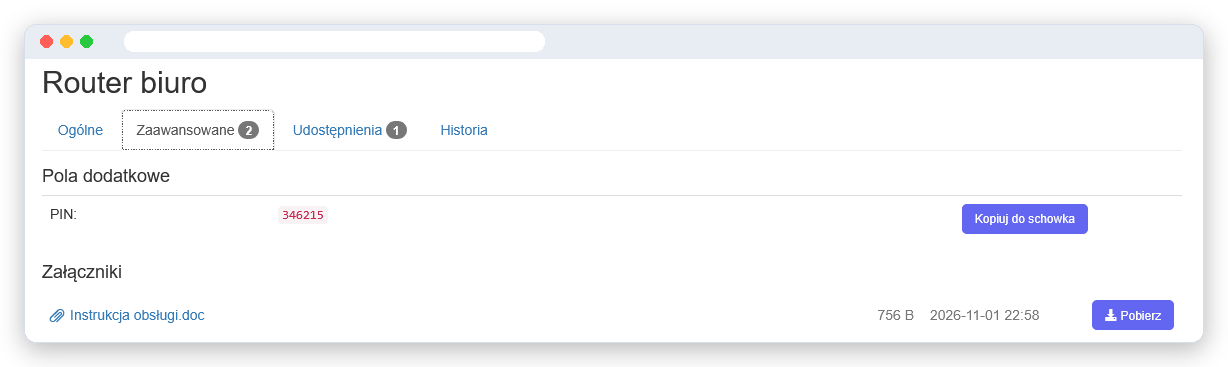
Attachments to an entry
You can attach files to an entry: a certificate, a licence key, a configuration file or login instructions. Everything needed for a given access is in one place, and attachment names are stored encrypted.
Password generator – a strong password in one click
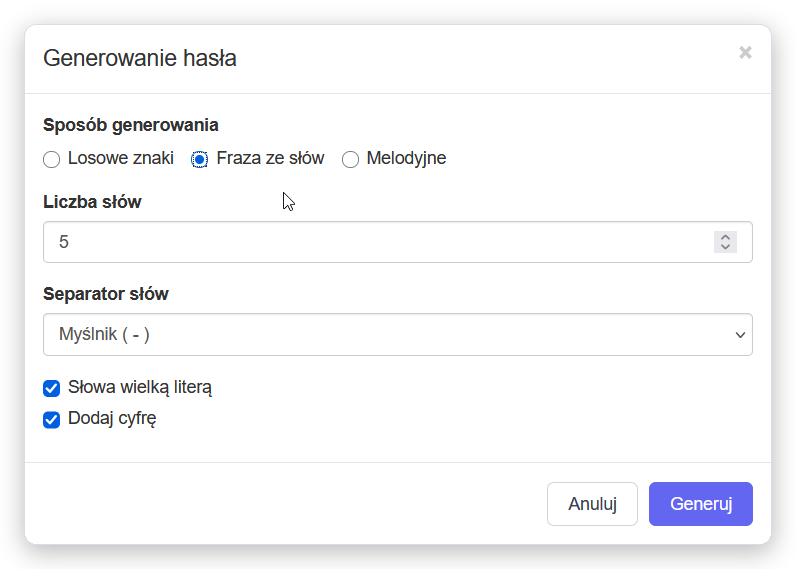
When adding or editing an entry, you don’t have to come up with a password. The built-in generator has three modes – you choose the one that suits where the password will be used.
Random characters – a strong password to paste
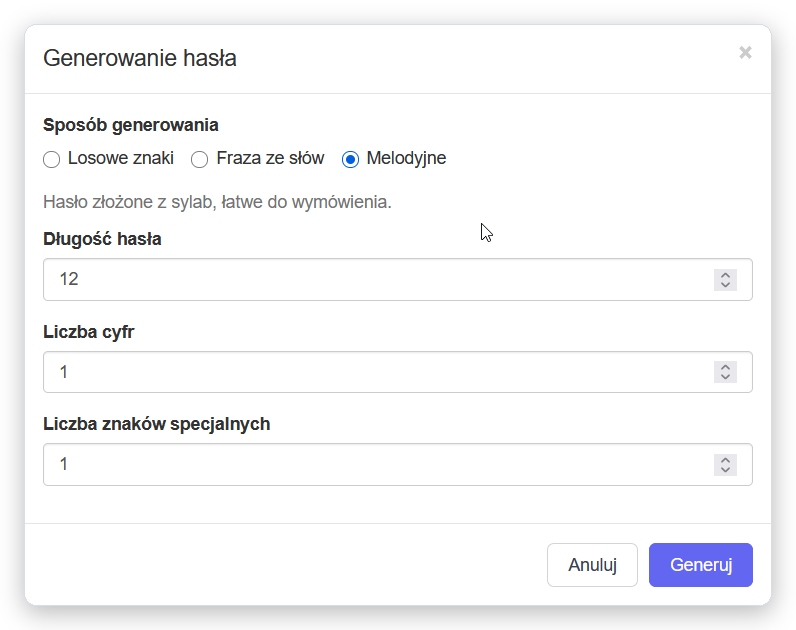
A password made of random characters that can’t be guessed or predicted. You set the length and the number of digits and special characters. Best where the password is pasted from Passman – admin panels, service accounts and online services.
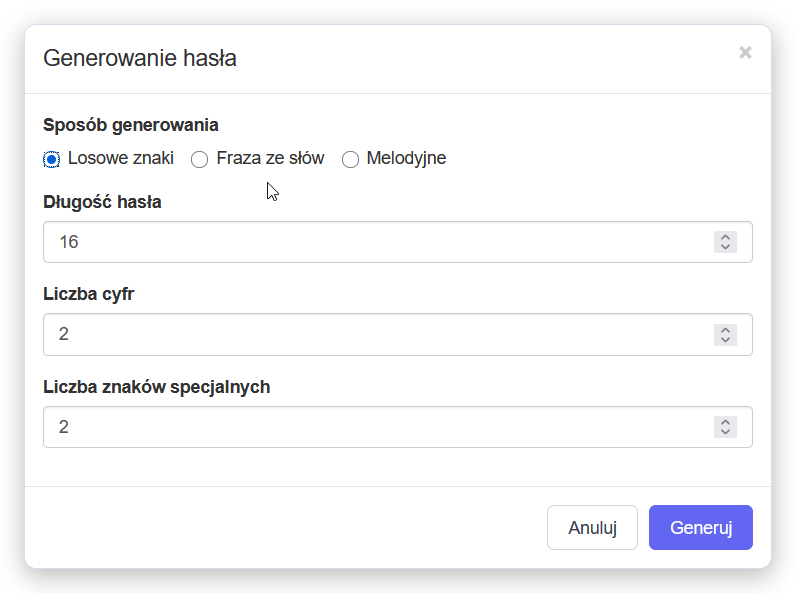
Pronounceable – a password you can say out loud
A password built from syllables, so it sounds like a word from a non-existent language. As in random mode, you set the length and the number of digits and special characters. It’s easier to read aloud, copy from the screen or give over the phone, and it still can’t be guessed.
Passphrase – a password to remember
A few random words from the BIP39 list – 2048 carefully chosen, easily distinguishable words. You choose the number of words and the separator, can capitalise the words and add a digit. Such a password is easy to remember and dictate – useful for a computer, Wi-Fi or a router.
SecureSend – access for someone outside the system, without creating an account
A subcontractor needs the router password, an auditor needs a panel login, the client’s IT person needs access for a few days. Creating accounts for them is overkill, and sending a password by email leaves it in a mailbox for years. Instead of the password, SecureSend sends a link that stops working on its own. The recipient gets the whole entry: address, login, password and note – everything they need to log in. The link leads to a copy of the entry made when it was sent, so later changes to the entry – e.g. a new password set after the work is done – won’t reach the recipient.
1. You create a link straight from the entry
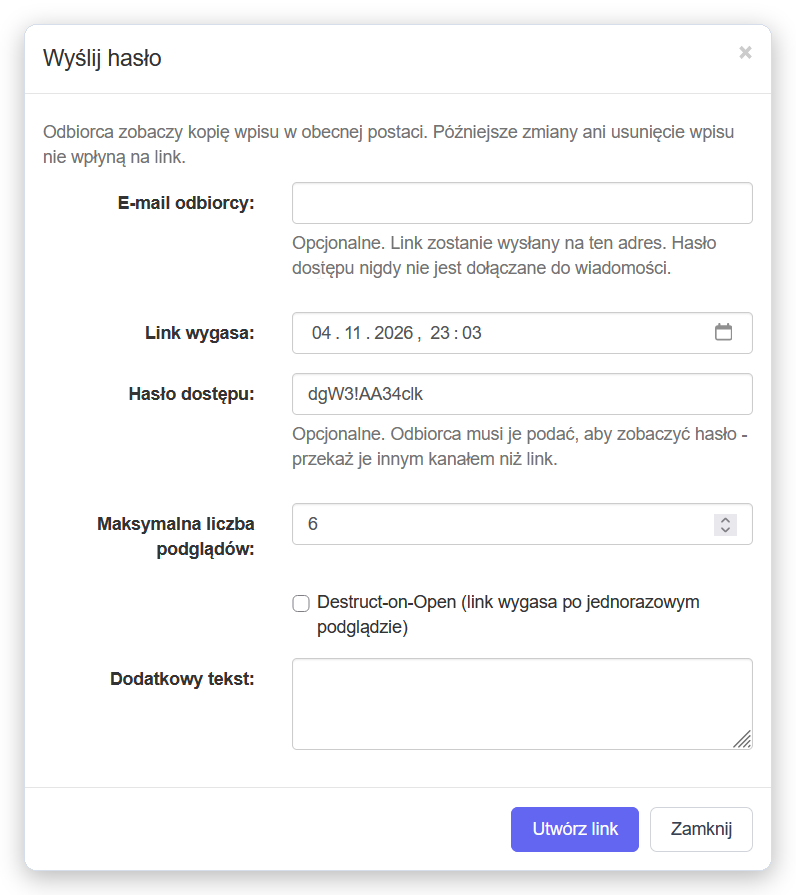
When the link is created, Passman saves a copy of the entry, encrypted the same way as the original (AES-256-GCM) – the recipient sees the data exactly as of that moment. You set the expiry date and time and the maximum number of views, and the Destruct-on-Open option makes the link expire after the first view. You can also add a message for the recipient.
2. Optionally, you add a password
The recipient has to enter it before seeing anything. You pass the link password through another channel – by text message or phone.
3. You send the link
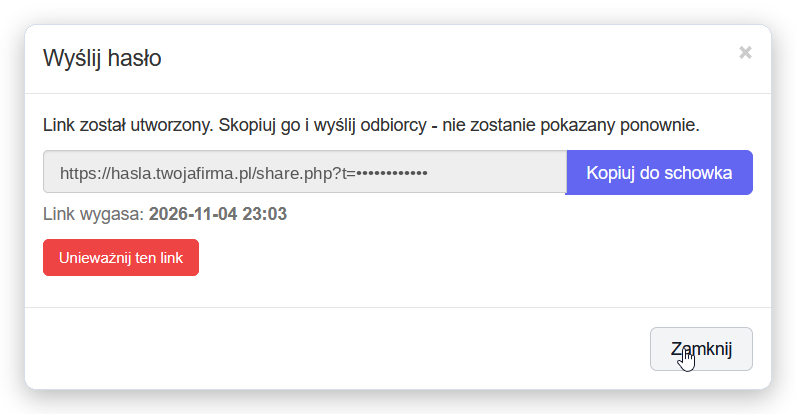
The link is shown only once – you copy it and send it via a messenger or text message. You can also enter the recipient’s email and Passman will send them the link itself. The access password is never included in the message, and the link itself contains no data – it’s only a pointer to the copy of the entry.
4. The recipient clicks “Show”
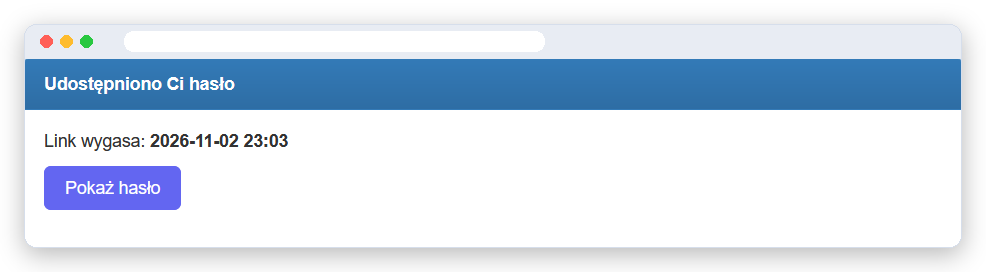
Opening the link alone reveals nothing, so email scanners and messenger previews won’t use it up before it reaches the right person. Every view of the data goes to the audit log – you can check whether and when the recipient used the link.
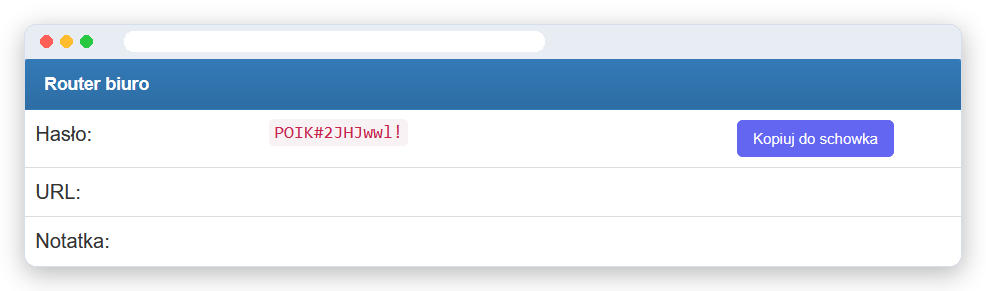
5. The link expires
When the time runs out or the view limit is reached, the link stops working and the copy of the entry is deleted from the database. The recipient had no account, so there is nothing left to clean up.
6. You can delete it at any time
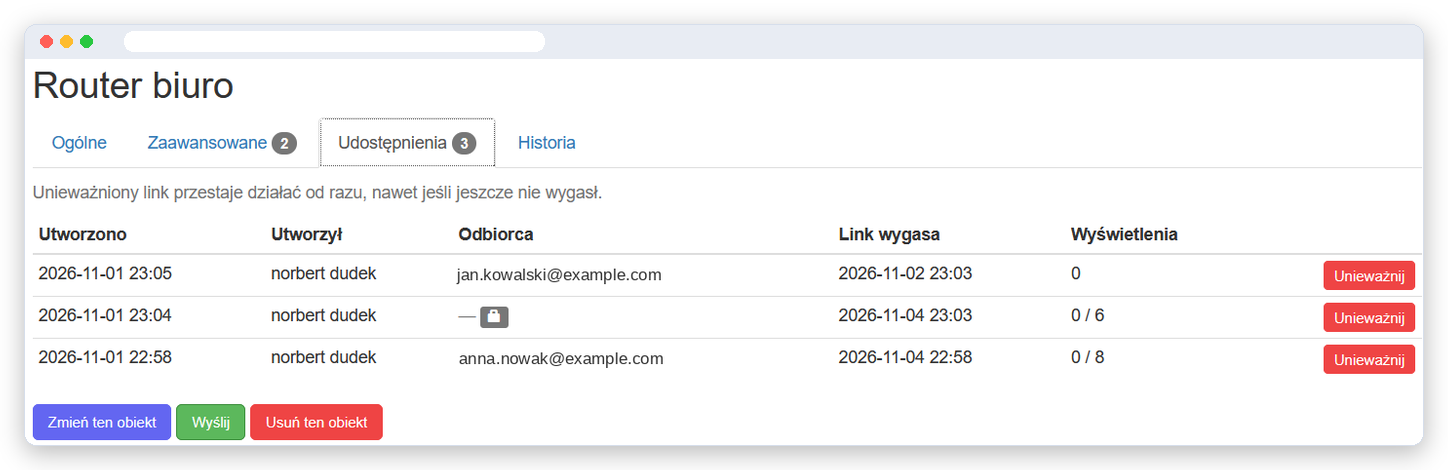
In the “Shares” tab of each entry you see all active links: who created them and when, for whom, how long they are valid and how many times they have been viewed. The “Revoke” button disables the link immediately and the copy of the entry disappears from the database – even if the time and view limit haven’t run out yet.
Security you control
AES-256-GCM encryption
The login, password, notes, custom field values and attachment names of every entry are stored in the database encrypted with AES-256-GCM – the same standard that protects HTTPS connections and banking transactions. GCM mode not only hides the data but also detects any attempt to change it directly in the database: a modified entry will not be decrypted. Each record is encrypted separately, with a new random initialisation vector – also after editing an entry when the password hasn’t changed. That’s why the same password saved twice looks completely different in the database, and the database alone doesn’t even reveal that two entries have the same password.
The encryption key is stored outside the database and outside the website directory, so a copy of the database alone – e.g. stolen from a backup – is not enough to read the passwords. User login passwords are not encrypted at all, but hashed with Argon2id: the application can verify them, but they cannot be recovered.
Audit log – who, what and when
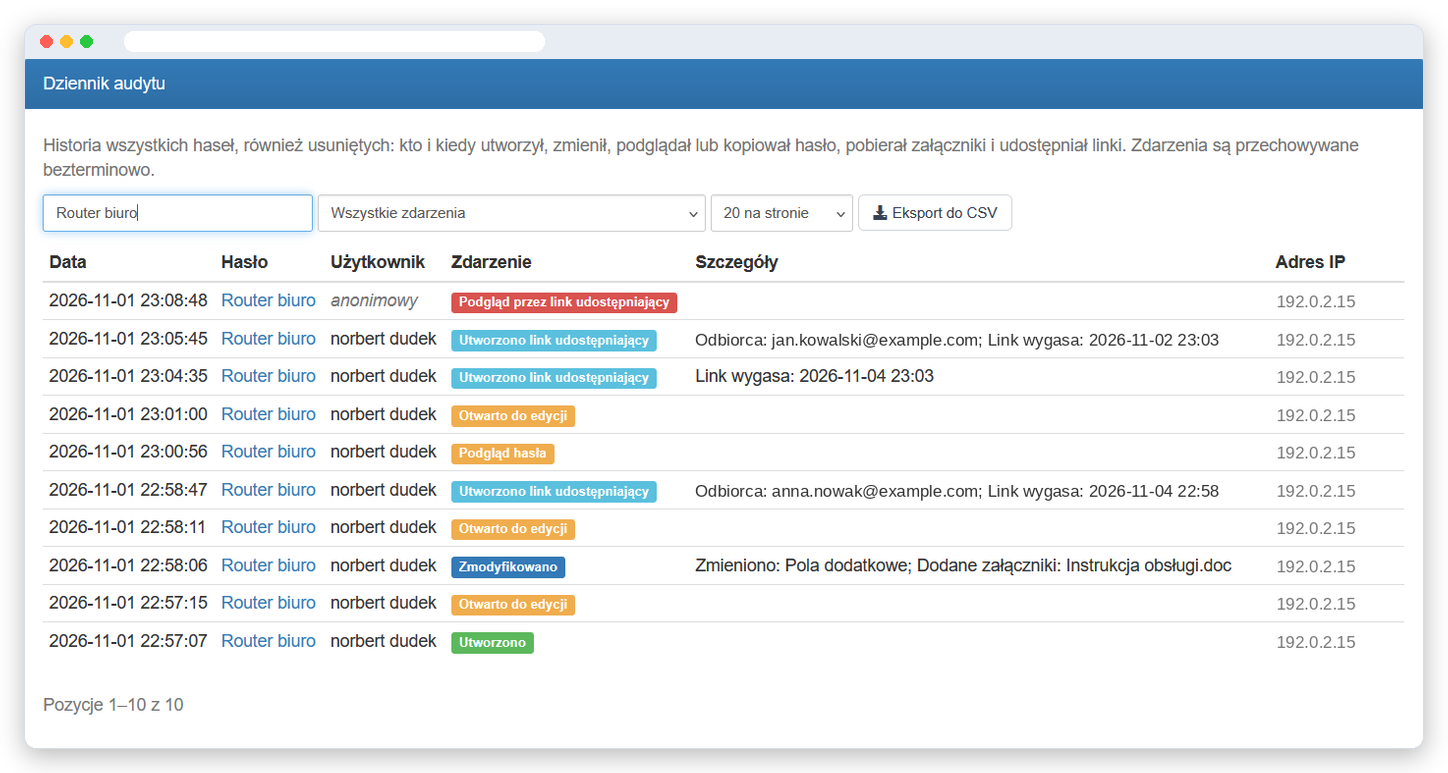
The audit log records every event: creating and changing an entry, viewing and copying a password, downloading an attachment, creating a SecureSend link and its opening by an outside person – together with the date, user and IP address. The history also covers deleted passwords and is kept indefinitely.
The history of a specific entry is visible to everyone who has access to it. The administrator browses the log of the whole application, filters it by entry name, user or event type and exports it to a CSV file – e.g. for an audit or after an employee leaves.
Backups – encrypted and ready to restore
Passman backs up all application data: entries, custom fields, attachments, users, groups and the audit log. Each backup is encrypted with the application key, so even if the file falls into the wrong hands, nobody can read data from it.
You can create a backup manually at any time or schedule automatic backups – every 2, 4, 6 or 12 hours, daily, weekly or monthly. You download the finished file with one click and keep it off the server, and in case of a failure or a move to a new server you restore all data from it.
Remember the key: you can decrypt a backup only with the same application key it was created with. Keep a copy of the key in a safe place – separately from the backup files.
Your server, your database
The application runs on your hosting (PHP + MariaDB). Data is not sent to any external service.
Access only through sharing
An entry is visible to its owner and to the people and groups it has been shared with. There is no “see everything” view for everyone.
Forced password change
The administrator can force a new password to be set at the next login. The system won’t accept the same password as before.
Local accounts
Login is based on accounts in the application – deployment doesn’t require integration with LDAP or Active Directory.
CSV export
You can export your entries to a CSV file at any time – your data isn’t locked in the application.
In Polish from the very first screen
The interface and messages are entirely in Polish. Translations work through gettext (files in the locale folder), so adding another language requires no code changes.
What Passman doesn’t do
It is not a cloud service
You install the application on your own server, or we do it for you. Server availability depends on your infrastructure – Passman makes backups by itself, but it’s worth keeping the downloaded files off the server.
It doesn’t integrate with LDAP / AD
Users are managed in the application panel.
It doesn’t send link-open notifications
The sender gets no email or alert when the recipient opens a SecureSend link. However, every opening is recorded in the audit log, and the list of active links in the password panel lets you delete an unnecessary link at any time.
There is no browser extension
Passwords are copied from the web panel, without form autofill.
From installation to the first entry
1. Installation
You upload the application to a server with PHP and MariaDB and run the database script. Step-by-step instructions are in the README on GitHub.
2. Administrator account
You create users and groups that reflect your company’s structure.
3. First passwords
You move the data from the spreadsheet and share it with the right groups.
Free and open – no limits and no “Pro” version
Passman is free and open source (GPLv3 licence), available on GitHub. There is no limit on users, entries or folders, and no paid version with unlocked features – everything described on this page is yours in full. You pay only if you want our help. You can report bugs and ideas in the Issues tab.
Free, forever
0 PLN
The full application to install on your own server – with all security and access control features.
- No limit on users, folders and entries
- AES-256-GCM encryption and group-based access control
- SecureSend, custom fields and attachments
- Audit log with filtering and CSV export
- Encrypted backups, including automatic ones
- Password generator: random characters, pronounceable and passphrase
- Open source under the GPLv3 licence
Support and custom development
Individual quote
New features, faster handling of requests and deployment help – directly from the application’s author.
- Custom feature development
- Priority for bug reports and messages
- Help with deployment and data migration
- Sponsoring selected roadmap features
Support Passman development
Using Passman and want it to keep growing? A voluntary donation helps maintain the project, fix bugs and add new features. Every amount counts.
You can support the project via PayPal or Buy Me a Coffee. Prefer a regular bank transfer? Write to us – we’ll reply with the account number.
Want to see Passman in action?
Write to us – we’ll show you a demo and help with deployment.


